Creality Cloud - 3D Printing
- 4.5
- Rating
- 5.00M
- Installs
- Free
- Price

 Analysis by App-foxy
I found Creality Cloud most useful when I stopped thinking of it as just a companion for a 3D printer. In practice, it brings several parts of the hobby into one mobile workspace: model discovery, slicing, viewing, design, and printer control. That combination makes sense in a household where one person prepares a print, another checks the model, and someone else wants to see whether the machine has finished.
It is a free tools app from Creality Cloud, aimed at people who already own a compatible 3D printer or are considering a more mobile way to manage 3D-printing projects. The app is suitable for Everyone, and its broad reach is reflected in an average rating of 4.5 from around 36 thousand ratings, with more than 5 million installs. Those numbers do not make it perfect, but they do suggest that it has become a familiar entry point for a large 3D-printing community.
How Creality Cloud fits into a shared home
A realistic household use case is a weekend project where one person finds a useful object, another adjusts the design, and a third person wants to monitor the printer without sitting beside it. Creality Cloud can support that flow because the model library, 3D viewer, slicer, designer, and remote-control tools sit in the same app rather than being scattered across several unrelated utilities.
You May Also Like

 Blood Strike: 2.5 Anniversary
Blood Strike’s Loadouts Turn Every Drop Into a Tactical Gamble
A close look at Blood Strike’s custom loadouts: how fast access to signature weapons reshapes its battle royale rhythm, rewards preparation, and narrows the gap between fights.

 Pandora - Music & Podcasts
Pandora’s Music Is Easy to Start, but Harder to Recover
Pandora’s strength is its low-effort path from a seed to a station. Its weak spot is how much confidence it asks you to place in connection, setup, and quiet recovery.

 8 Ball Pool
 Is Built on Rivalries, Rematches, and Routine
A close look at the rivalries, rematches, shared routines, and unanswered safety questions that turn a quick pool match into a persistent mobile community.

 Samsung Music
’s Quiet Strength Is Playing What You Already Own
Its reach comes less from spectacle than from dependable access to a personal library. That simplicity is both the app’s strongest retention engine and its ceiling.

 AccuWeather: Weather Radar
AccuWeather Review: A Quick, Clear Forecast for Everyday Decisions
For everyday plans, the best forecast is the one you can understand quickly. AccuWeather makes rain timing, radar, and local conditions easy to act on, with a few trade-offs.

 Hill Climb Racing
Why Hill Climb Racing Still Turns Crashes Into One More Run
A tiny car, a bumpy hill and one more upgrade: Hill Climb Racing keeps resurfacing because its simple chaos makes every near-miss feel personal.
More From Our News Desk



I like this arrangement for small practical projects. Someone might look for a replacement organizer, inspect its shape in the viewer, prepare it for printing, and then check the machine later from another room. The phone becomes a project window rather than merely a remote button. That is a meaningful advantage over a basic printer-control app that only shows status or sends prepared jobs.
The shared-device angle needs some common sense, though. A phone used by several people is not the same as a shared workshop account. Before anyone starts changing a model or controlling a printer, it helps to agree on who owns the active project and who is allowed to start a print. A child may enjoy browsing designs, while an adult handles the final preparation and machine operation. The app can bring the workflow together, but the household still has to establish its own boundaries.
There is also a useful distinction between collaboration and simultaneous editing. I would treat Creality Cloud as a place for coordinating stages of a project, not as a guarantee that several people can safely modify the same work at once. If two household members have different ideas, save or finish one version before moving to the next. That simple habit avoids confusion about which file is ready to print.
What the mobile workflow does well
The 3D viewer is more valuable than it first sounds. Looking at a model on a flat thumbnail can hide awkward overhangs, thin sections, or an orientation that will be inconvenient on the printer. Rotating the object on a phone gives me a quick visual check before I spend time preparing it. It is not a replacement for careful slicing, but it is a useful first filter.
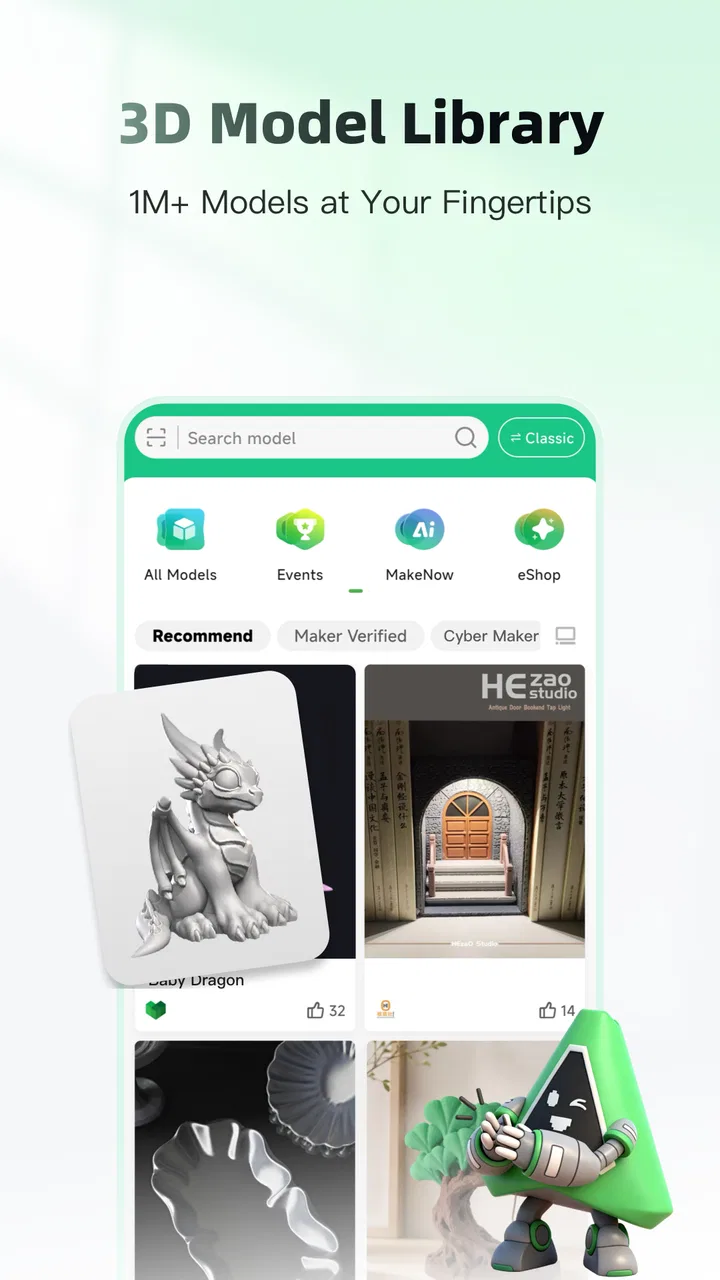
The built-in library also reduces the friction of moving from inspiration to action. Instead of searching in one place, downloading to another, opening a separate slicer, and then finding a way to send the result to the printer, the app keeps those steps closer together. That does not mean every model is immediately ready for a successful print. It means the path from idea to preparation is easier to follow.
The designer is best viewed as a convenient starting point rather than a full substitute for advanced desktop modeling software. For quick adjustments, simple objects, or learning the basic logic of creating a printable shape, having design tools on a phone is handy. For precise engineering work, complex assemblies, or detailed edits, I would still prefer a larger screen and a dedicated modeling program.
The strongest benefit is continuity between discovery, inspection, preparation, and monitoring. Each individual tool may not satisfy an expert on its own, but together they make the app practical for people who want fewer disconnected steps.
Setup boundaries worth deciding early
Before using the remote-control side, I would first make sure the printer connection and account arrangement are understood by everyone who may use the app. Remote access is convenient, but convenience can become risky if several people assume they have the same authority. A household should decide who can initiate a job, who checks the physical machine, and who handles failed prints.
This matters because a mobile command can feel abstract. On the phone, starting a print may look like one more tap in a digital workflow. In the room, it means heat, moving parts, material, and a physical object being produced over time. I would never treat remote control as permission to leave a printer unattended without the normal safety checks recommended for that machine.
I also recommend setting up a small naming habit for projects. Use clear names that identify the object and its intended version instead of leaving several nearly identical files in circulation. In a shared home, this is more helpful than it sounds. It prevents a family member from selecting an older design simply because it appears first in a list.
Another practical boundary is separating browsing from printing. Letting someone explore the model library does not need to mean giving that person responsibility for slicing or sending jobs. If the app is installed on a shared phone, keep the final decision with the person who understands the printer, material, and expected result.
Coordinating projects without turning the phone into a workshop argument
Creality Cloud works best when the household treats a print as a small project with stages. One person can collect ideas, another can inspect the model, and the printer owner can approve the final job. This division is especially useful when not everyone has the same technical experience.
For example, a teenager might find a model for a desk accessory and show it to a parent. The parent can rotate it in the viewer, discuss whether it is suitable, and decide whether the design needs adjustment. The person responsible for the printer can then prepare the job and monitor it. The app supports this kind of handoff because its features cover more than a single technical task.
I would avoid relying on memory for project status. A simple household message such as “model selected,” “design adjusted,” or “ready for print” can prevent duplicate work. Creality Cloud provides the tools, but it does not replace a clear agreement between users. This is one of the less obvious lessons of a multi-purpose app: bringing everything together makes coordination easier only when people also agree on who is doing what.
The remote-control feature is particularly helpful when the printer is in a separate room or shared workspace. I can imagine checking progress while preparing dinner or confirming that a job has completed before walking over to the machine. Still, remote visibility should not encourage constant tinkering. If a print is progressing normally, repeatedly changing settings or interrupting the workflow can create more problems than it solves.
There is a trade-off here compared with using a dedicated desktop setup. Desktop software usually offers more room for detailed inspection and more comfortable control of complicated projects. Creality Cloud wins when the priority is access from a phone and a shorter route between the model library and printer. I would choose it for convenience and connected workflow, not because mobile controls automatically replace every desktop tool.
Age, trust, and sensible supervision
The Everyone age classification makes the app approachable for households, but an age label should not be confused with technical readiness. Browsing models can be simple; understanding print orientation, material behavior, and printer safety takes more experience. Younger users may enjoy the creative side while still needing an adult to approve designs and supervise the physical machine.
I would be comfortable introducing the app as a shared learning tool. A child can rotate objects, compare shapes, and suggest ideas. An older student can explore the designer and learn why some forms need support or a different orientation. The adult role is most important at the point where a digital choice becomes a hot, moving physical process.
Trust also matters with account access. On a personal phone, it is easier to know who is making changes. On a family tablet or shared device, people should avoid assuming that every visible project belongs to them. If several users work in the same space, agree on whether the account is personal, household-based, or reserved for the printer owner. I would not mix private account activity with casual guest use unless everyone understands the arrangement.
There is no need to make the app feel overly formal. A short conversation is enough: who may browse, who may edit, who may start a print, and who checks the machine. Those rules are more useful than pretending that a general-purpose tools app can solve household trust issues by itself.
Where the app may frustrate experienced users
The all-in-one design is convenient, but it can also make the experience feel busy. A newcomer may appreciate seeing the library, viewer, designer, slicer, and printer functions together. An experienced maker may prefer a narrower tool that opens directly to the exact task at hand. If I only want to check a printer status, the wider ecosystem can feel like extra navigation.
Mobile slicing and design also have natural limits. A phone is excellent for quick checks and small adjustments, but less comfortable for detailed work that requires repeated measurements, careful layer inspection, or many parameter changes. I would use the app to keep a project moving while away from a computer, then switch to a larger workflow when precision becomes the priority.
Another consideration is spending. The app itself is free, while in-app purchases range from $0.99 to $399.99 per item. That wide range means I would pay attention before confirming anything, particularly on a shared device. A household should make sure the person browsing models understands which actions are free and which may involve a purchase. This is not a reason to avoid the app, but it is a reason to keep purchase decisions with the account owner.
Version 7.3.19 is the current version, and the app requires Android 7.0 or later. That makes device compatibility an early checkpoint for older phones and tablets. If a household printer phone is aging, I would verify that it can run the app comfortably before building an important workflow around it.
The developer is Creality Cloud, so the app makes the most sense for users already interested in the Creality ecosystem. People who use a different printer brand may still find parts of the library or design workflow useful, but I would not assume that every remote-control feature will fit every printer arrangement. Compatibility should be checked before treating the app as the central control point for a mixed-brand workshop.
Small workflow improvements that make a real difference
My first tip is to inspect before slicing. Use the viewer to look at the underside, narrow details, and likely contact points. This catches obvious problems early and helps the household discuss whether a model is worth preparing. It is a quick step, but skipping it can lead to unnecessary preparation and disappointment.
My second tip is to keep the designer for purposeful changes rather than endless experimentation on a shared project. If the goal is to add a simple feature or adapt an object, make the change, save it clearly, and pass it to the person responsible for the printer. This keeps creative exploration from becoming a confusing pile of unfinished versions.
My third tip is to use remote control as a coordination aid, not as a substitute for physical awareness. Checking progress from another room is useful, especially in a busy household. Before starting a job remotely, confirm that the printer has material, the build area is ready, and the person nearby knows what is happening. The app can reduce unnecessary trips, but it cannot inspect the room for you.
My fourth tip is to establish a “one active print” rule when several people share the printer. Unless the household is experienced with scheduling, one clearly identified job is easier to track than several informal requests. This turns the app’s broad feature set into a manageable routine and reduces the chance that someone starts a print while another person is still preparing the machine.
These habits are not flashy features, but they are where the app becomes more dependable. The difference between a smooth mobile workflow and a frustrating one often comes from project naming, approval steps, and knowing when to move from the phone to a larger screen.
Who should use it, and who should look elsewhere
I would recommend Creality Cloud to a beginner who wants one place to explore models and learn the stages of 3D printing. It is also a good fit for a household that shares a printer and needs occasional remote visibility without maintaining several unrelated apps. The combination of library, viewer, designer, slicer, and printer control gives curious users room to grow.
It is less suitable for someone who already has a carefully tuned professional workflow and wants maximum control from a desktop environment. That user may find mobile editing restrictive and the broader app structure slower than specialized software. It may also be the wrong choice for a person who only needs a simple printer monitor and does not care about models, design, or slicing.
I would also hesitate to make it the only tool for a mixed-brand workshop until compatibility is clear. The app’s appeal is strongest when its printer-related features match the equipment being used. For a single-brand household or someone entering the Creality ecosystem, the unified approach is much easier to justify.
My household verdict
After looking at it as a shared household tool, I see Creality Cloud as more than a model browser but less than a complete replacement for every serious desktop 3D-printing application. Its real strength is the connected path from finding an idea to viewing it, preparing it, and checking the printer afterward.
I appreciate that it can support different levels of involvement. One person can browse, another can learn the design side, and a more experienced user can keep responsibility for the final print. That makes it approachable without pretending that every task should be handed to the least experienced person in the room.
The limitations are equally clear: mobile screens are not ideal for demanding design work, remote control needs sensible physical supervision, and shared accounts require household agreement. The possible in-app purchase range also deserves attention on a family device. None of these issues cancels out the app’s usefulness, but each affects how I would set it up.
For me, the best reason to install it is convenience with context. If you own a compatible printer and want a flexible way to connect model discovery, preparation, and monitoring, it is a strong free starting point. If you need highly specialized modeling control or a minimal status-only tool, a dedicated alternative may suit you better. In a home where people communicate clearly about projects and printer responsibility, Creality Cloud can make 3D printing feel much less fragmented.
FAQs for Creality Cloud - 3D Printing
01What is Creality Cloud - 3D Printing used for?
Creality Cloud is a platform for discovering, preparing, and managing 3D printing projects. It includes a large model library, community features, tutorials, contests, and tools for slicing compatible models before sending them to a printer. It is especially useful for Creality printer owners, although some content and services may also be helpful to users of other 3D printers.
02Can I use Creality Cloud without owning a Creality 3D printer?
Yes, you can install and explore Creality Cloud without owning a Creality printer. You may browse downloadable models, read community posts, watch tutorials, and learn about 3D printing. However, certain functions, such as remote printer monitoring, printer control, and some integrated workflows, require a compatible Creality machine and may also depend on the printer model, firmware, and account configuration.
03Does Creality Cloud include a 3D model library and slicing tools?
Yes, one of the app’s main attractions is its extensive collection of 3D-printable models shared by creators and community members. Depending on the model and supported workflow, you can download files, adjust printing settings, and prepare them with slicing tools. Users should still inspect model quality, scale, supports, and printer compatibility before starting a print.
04Can Creality Cloud control or monitor my 3D printer remotely?
Creality Cloud can provide remote management and monitoring features for supported Creality printers and connected devices. These functions may allow users to start jobs, check progress, view camera feeds, or receive status information. Availability is not identical across every printer, region, or firmware version, so checking compatibility and maintaining a reliable internet connection is important before relying on remote printing.
05Is Creality Cloud free to download and use?
The app can generally be downloaded and used without an upfront purchase, giving users access to many models, community features, and basic tools. Nevertheless, some content or advanced services may involve optional purchases, subscriptions, credits, or printer-related costs. You should review the current in-app pricing, account requirements, and privacy permissions before downloading files or activating additional features.
Pros
- Large library of downloadable 3D models and printable designs.
- Supports remote monitoring for compatible Creality 3D printers.
- Includes slicing tools for preparing models from a mobile device.
- Community features make it easy to share prints and discover creators.
- Useful tutorials and printing resources help beginners get started.
Cons
- Some advanced features require a paid subscription or in-app purchases.
- Printer compatibility can vary depending on model and firmware version.
- The app may feel cluttered because of its shopping and social sections.
- Large models and cloud projects can take time to load on slower connections.
- Remote printing depends on a stable network and correctly configured hardware.

Creality Cloud - 3D Printing
Gallery